The code-free app
Not every search starts in an editor. scopusflow ships a local NiceGUI app that drives the whole workflow through a browser tab, from describing a search to exporting the records, without writing any Python. It runs on your own machine, so your Scopus key never leaves it and requests come from your own network. The app doubles as a way into the library itself, because it mirrors every choice you make back as a runnable script. Anything you can do in the app you can later do from code, and the script in the panel shows you how.
Launch the app
The app lives behind an optional extra, so install it with the app group and start it with the console script:
pip install "scopusflow[app]"
scopusflow-gui
That opens a tab at http://127.0.0.1:8080. The script takes --host, --port and --no-browser, along with --version, so scopusflow-gui --port 9000 serves on another port and an unrecognised flag is refused outright. If you would rather start it from Python, call launch from the app module. It is not a top-level export, so reach it through the module:
import scopusflow.app

scopusflow.app.launch(host="127.0.0.1", port=8080, show=True)
The app binds to 127.0.0.1 on purpose, so it is reachable only from this machine.
Try it in demo mode
Demo mode is switched on the first time the app opens, so you can walk the entire flow with no key at all. With it on, no request goes out at all: the harvest is replayed from the corpus bundled with the package, the live terminal still streams per-cell progress, the table and plots still render, and the Compare topics card still draws a figure. It is the quickest way to learn where each control lives before you spend any quota.
What the replay serves is real: 138 published articles on graphene supercapacitors, with their own titles, DOIs, journals and citation counts, taken from example_records. They are not a Scopus harvest, because retrieved records may not be redistributed, and Get started says where they do come from. The corpus covers 2015 to 2024, which is where the year slider opens, and a cell for a year outside that span comes back empty and says so in the live terminal, where padding it out with a neighbouring year's rows would double records up. Demo mode never contacts the network, so the records are the bundled ones whatever terms you type.
The window below is the app in demo mode just after a harvest, so everything in it was produced without a key. The search card sits on the left and the reproducible Python panel on the right, with the live terminal, the record count, the paginated table and the two figures filling the area beneath them.
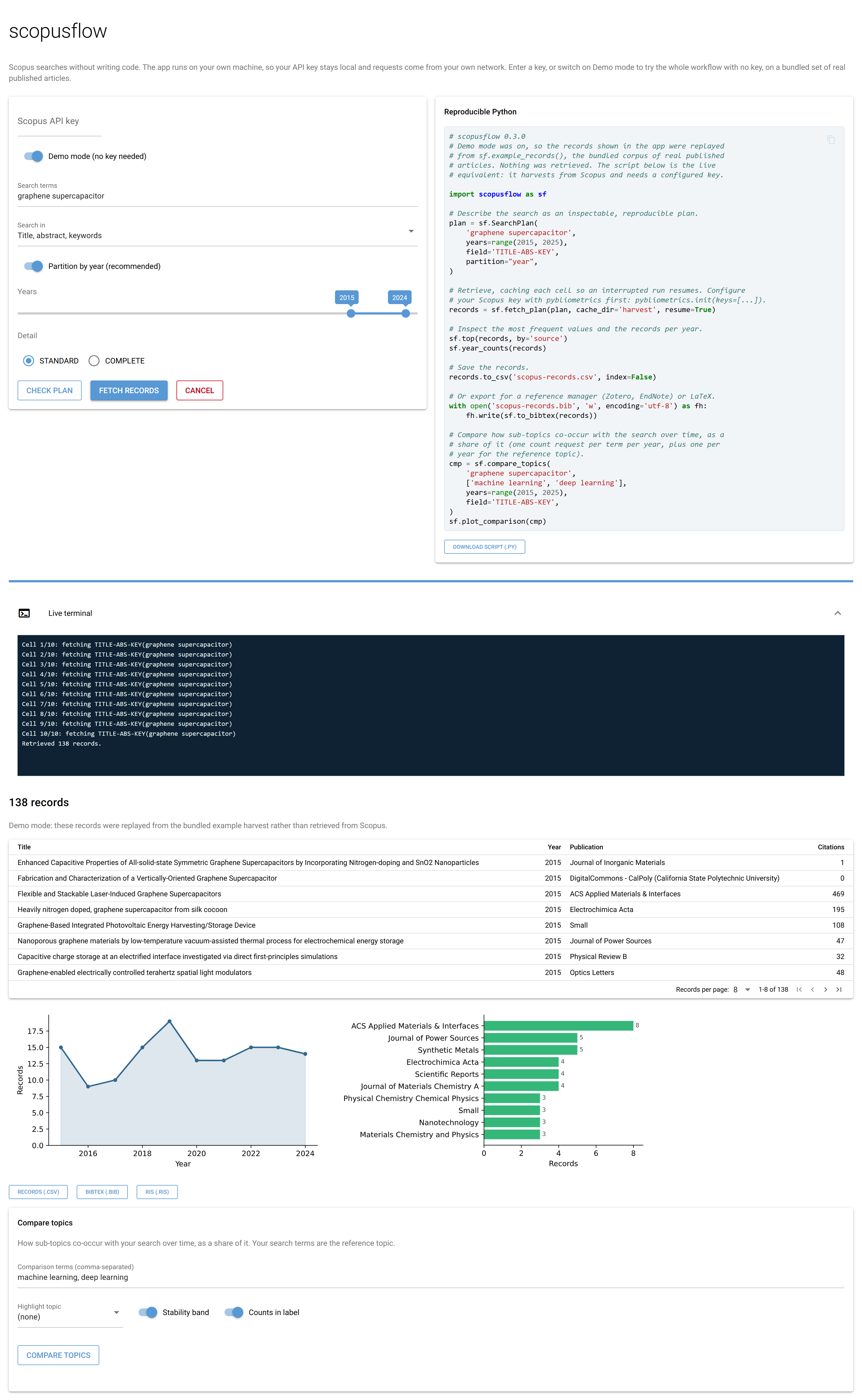
Demo mode hands back records with the same stable RECORD_COLUMNS schema a real harvest returns, so the table, the trend plot and the source plot behave exactly as they will against the live API. When you are ready for real results, paste your Scopus API key into the field at the top and switch Demo mode off. The key stays in the running process and is never written to the generated script.
Describe and size the search
The left card is where you describe the search. You type your terms, choose which field to search in (title, abstract and keywords by default), and set a year range. Partitioning by year is recommended and switched on by default, because it keeps each cell small enough to stay under the API's offset ceiling, the same reasoning behind a partitioned SearchPlan in code.
Check plan sizes the search before you commit to it. In demo mode it counts how many bundled records the replay would return, which differs from year to year, since the corpus holds what the literature actually published. With a real key it runs a single cheap count request, the same one scopus_count performs, and tells you how many records the query matches across how many year-cells:
import scopusflow as sf

# What "Check plan" runs with a real key (needs a configured Scopus key).
sf.scopus_count(
    "graphene supercapacitor",
    years=range(2015, 2025),
    field="TITLE-ABS-KEY",
)
That call contacts the Scopus API, so it only returns a number once pybliometrics holds a valid key. In the app the key you paste is used for the session. From a script you would configure it yourself with pybliometrics.init.
Run the harvest with a live terminal
Fetch records starts the harvest. The retrieval runs off the event loop in a background worker, so the tab stays responsive while it works, and the Live terminal expansion streams a line per cell as each one completes. A progress bar tracks how far through the plan the run has reached, and Cancel stops the harvest once the cell in flight has finished, so a real run does not waste the cell it is already paying for.
Internally the app builds a SearchPlan from your choices and hands it to fetch_plan with a per-query cache directory and resume turned on, so an interrupted or quota-limited run picks up where it left off. The equivalent in a script is:
import scopusflow as sf

# What "Fetch records" runs with a real key (needs a configured Scopus key).
plan = sf.SearchPlan(
    "graphene supercapacitor",
    years=range(2015, 2025),
    field="TITLE-ABS-KEY",
    partition="year",
)
records = sf.fetch_plan(plan, cache_dir="harvest", resume=True)
records.shape
When the run finishes, the results area shows the record count, a paginated table of titles, years, sources and citations, and two figures drawn by the library itself, a year trend from year_counts via plot_trend and the most frequent sources from top via plot_top.
Read off the reproducible script
The right-hand card, labelled Reproducible Python, is the part that turns the app into a tutorial. It mirrors every choice you make, the query, the field, the year range, whether you partition by year, the chosen view, and the Compare topics options, and rewrites a runnable script as you go. Change a control on the left and the script updates immediately, so you can see exactly which argument each toggle sets.
The script the panel produces follows the same shape as the planning workflow, building a plan, fetching with a cache so a run resumes, inspecting the result, and saving it:
import scopusflow as sf

# Describe the search as an inspectable, reproducible plan.
plan = sf.SearchPlan(
    "graphene supercapacitor",
    years=range(2015, 2025),
    field="TITLE-ABS-KEY",
    partition="year",
)

# Retrieve, caching each cell so an interrupted run resumes. Configure
# your Scopus key with pybliometrics first: pybliometrics.init(keys=[...]).
records = sf.fetch_plan(plan, cache_dir="harvest", resume=True)

# Inspect the most frequent values and the records per year.
sf.top(records, by="source")
sf.year_counts(records)

# Save the records.
records.to_csv("scopus-records.csv", index=False)
The key is never written into the script. The panel leaves a comment noting it comes from your pybliometrics config, so a script you share carries the method but not your credentials. Download script (.py) saves exactly what you see.
Compare topics
The Compare topics card asks a different question from a harvest. It retrieves no records at all, and measures instead how a set of sub-topics co-occur with your search over time, as a share of it, with your search terms acting as the reference topic. You enter comma-separated comparison terms, optionally pick one to highlight, and toggle the stability band and whether record counts appear in the legend. Because each term needs one count request per year, the card warns you when the term and year counts multiply into a large number of requests.
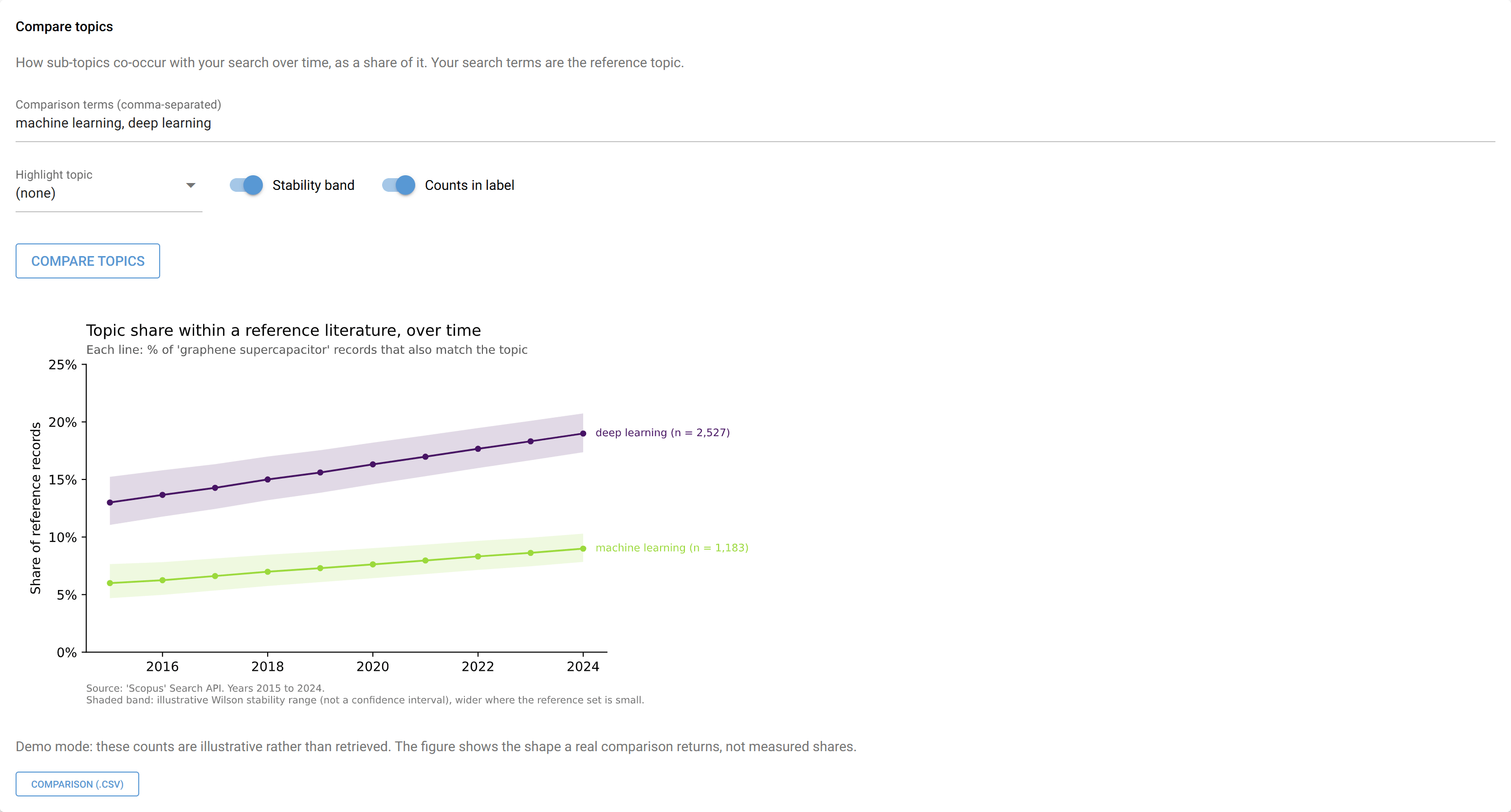
In demo mode the comparison is the one part that is made up, since a comparison is a set of per-year counts that only the count endpoint can answer. The figure is drawn from invented numbers so you can see its shape offline, with its own progress streamed into the live terminal. With a real key the card calls compare_topics and draws the result with plot_comparison, the same figure the library produces:
import scopusflow as sf

# What "Compare topics" runs with a real key (needs a configured Scopus key).
cmp = sf.compare_topics(
    "graphene supercapacitor",
    ["machine learning", "deep learning"],
    years=range(2015, 2025),
    field="TITLE-ABS-KEY",
)
sf.plot_comparison(cmp, highlight="machine learning", interval=True)
The highlight option only forwards a topic the plot can draw, so a term with no plottable share is quietly left unhighlighted, without raising. As with the harvest, the comparison contacts the Scopus API and needs a configured key to return real counts.
Export in one click
Every result the app shows comes with one-click export. The records table offers the frame as CSV, as BibTeX and RIS for a reference manager such as Zotero or EndNote, drawn from to_bibtex and to_ris, and as a PRISMA-S search record in Markdown, drawn from scopus_search_report. In demo mode that record carries no plan or retrieval time, and says so, since the records on screen were replayed from the bundled harvest. The Compare topics card offers its comparison frame as CSV. None of this needs the API again, because it works on results already in hand:
import scopusflow as sf

# The same export the download buttons perform, on records you already have.
with open("scopus-records.bib", "w", encoding="utf-8") as fh:
    fh.write(sf.to_bibtex(records))

with open("scopus-records.ris", "w", encoding="utf-8") as fh:
    fh.write(sf.to_ris(records))

sf.scopus_search_report(records, file="scopus-search-record.md")
Between the downloaded script and the exported records, a session in the app leaves you with both the data and the code that produced it, ready to drop into the rest of your workflow.
Beyond the app
Anything you can do in the app you can later do from code, but the reverse does not hold. The app covers planning, retrieval and the trend, top and comparison analyses, and the library goes further. scopus_intersections counts how a set of named concepts and their intersections overlap in the literature, and plot_scopus_intersections draws the result. scopus_abstract retrieves abstract text and richer metadata than the Search API returns, and corpus builds on it to give a harvest author keywords and structured references for tools further downstream. When a session in the app has taken you as far as it goes, the downloaded script is the place to carry on from.